
What you will master
Three spaces. One clear workflow.
Know the three parts
Understand what a local folder is, what GitHub stores, and what a public website actually means.
See the flow clearly
Learn the exact journey: create locally → upload to GitHub → publish for the public.
Avoid beginner confusion
Stop mixing laptop file paths, repository links and live website URLs.
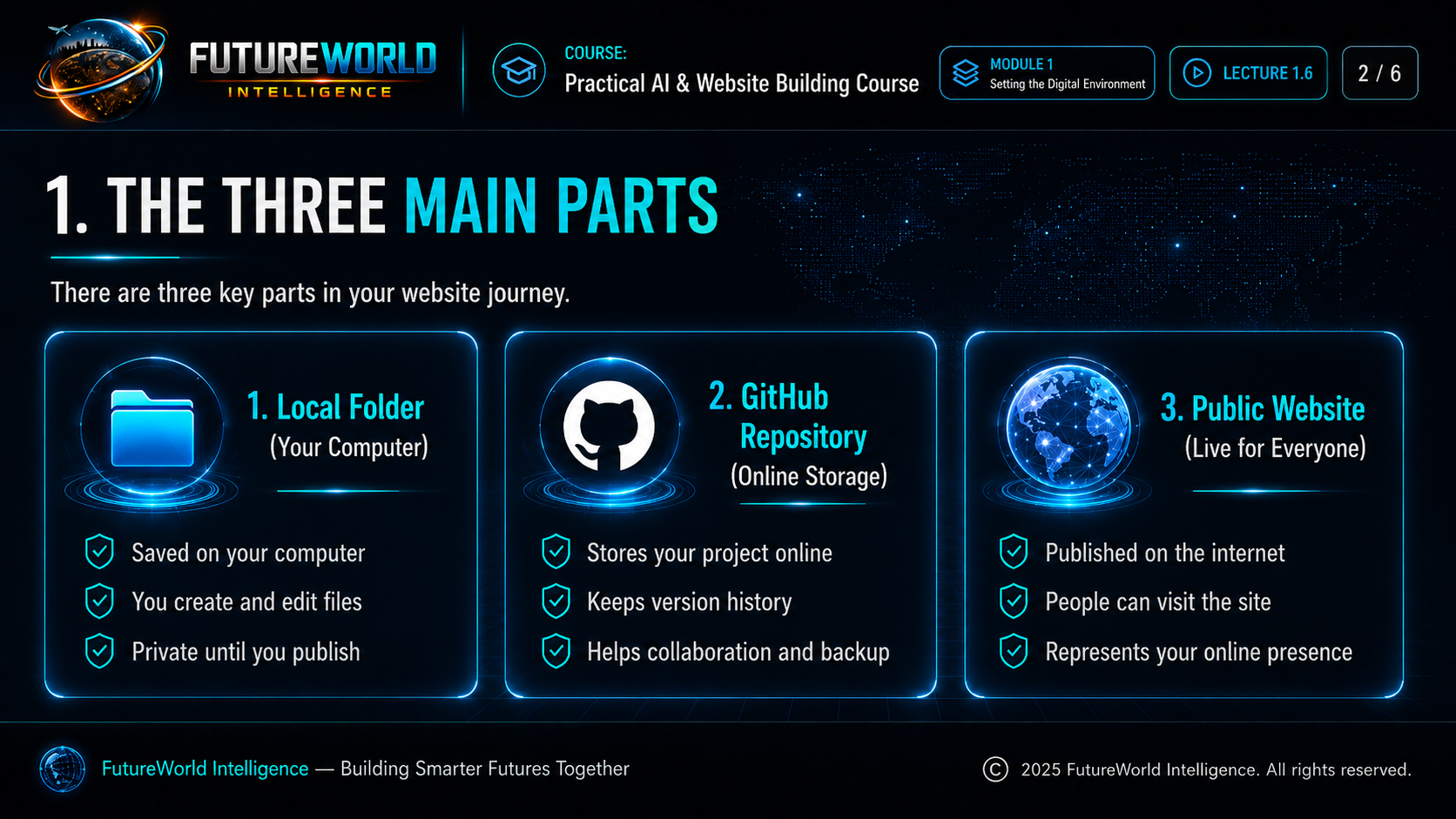
Concept Breakdown
The three main parts
| Part | Meaning | What you do there | Visibility |
|---|---|---|---|
| Local Folder | The project folder saved on your own computer. | Create files, edit pages, save images, organize project work. | Private to your computer until you upload or share. |
| GitHub Repository | Your online project storage and version history. | Back up files, track changes, sync work, collaborate and prepare publishing. | Can be private or public depending on repo settings. |
| Public Website | The live web address visitors can open in a browser. | Show your work to learners, readers, clients or the general public. | Public and visible on the internet. |
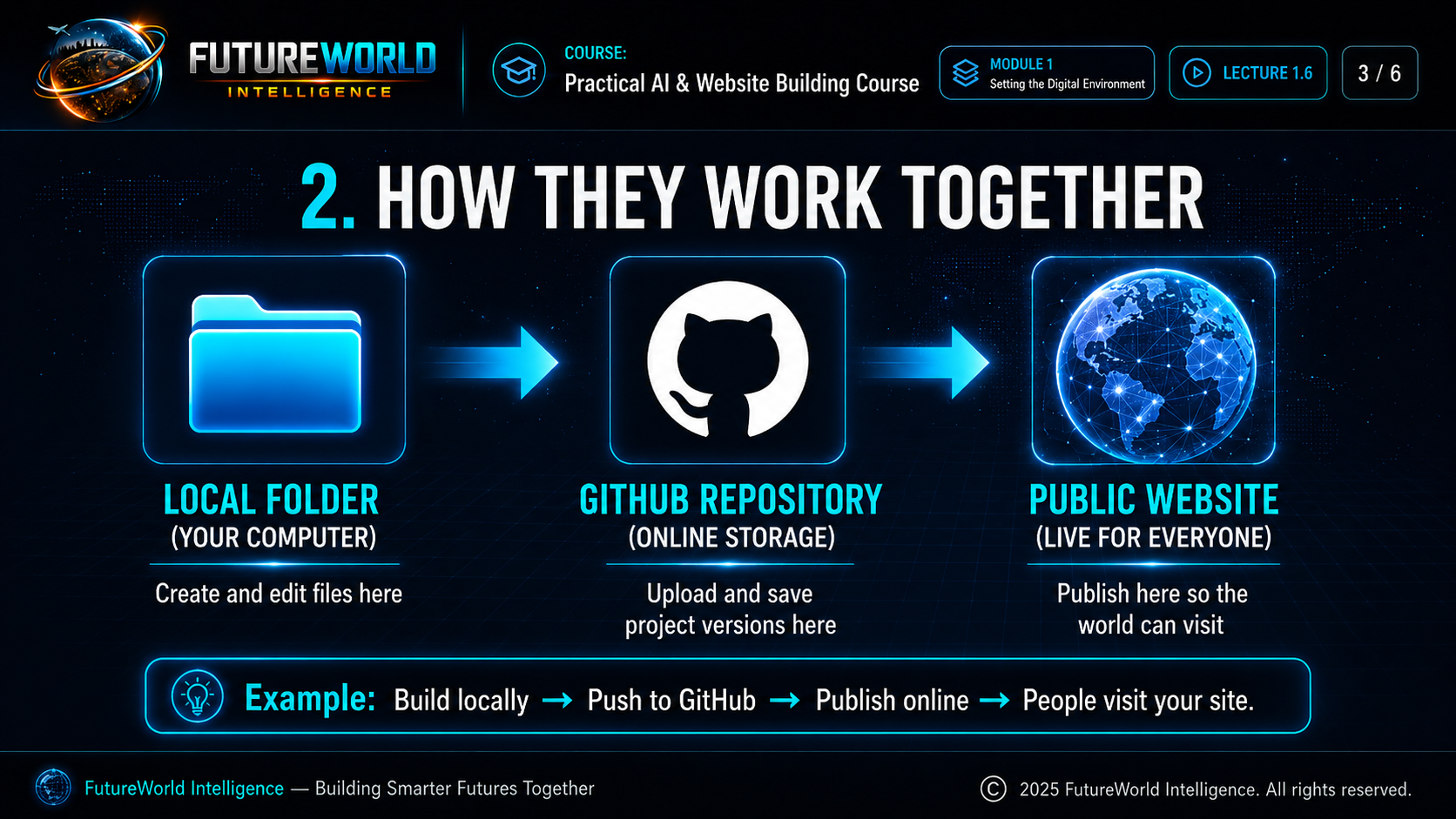
Workflow
How they work together
Step 1: Work locally
Your first work happens in your local folder. This is where you create HTML files, edit CSS, save images and test drafts.
Step 2: Upload to GitHub
When the work is ready, you commit and push it to your GitHub repository so it is backed up and versioned online.
Step 3: Publish online
Your website hosting or GitHub Pages publishes the content, turning it into a live website for real visitors.
Step 4: Update repeatedly
Every future improvement follows the same flow: edit locally → push to GitHub → update the public site.
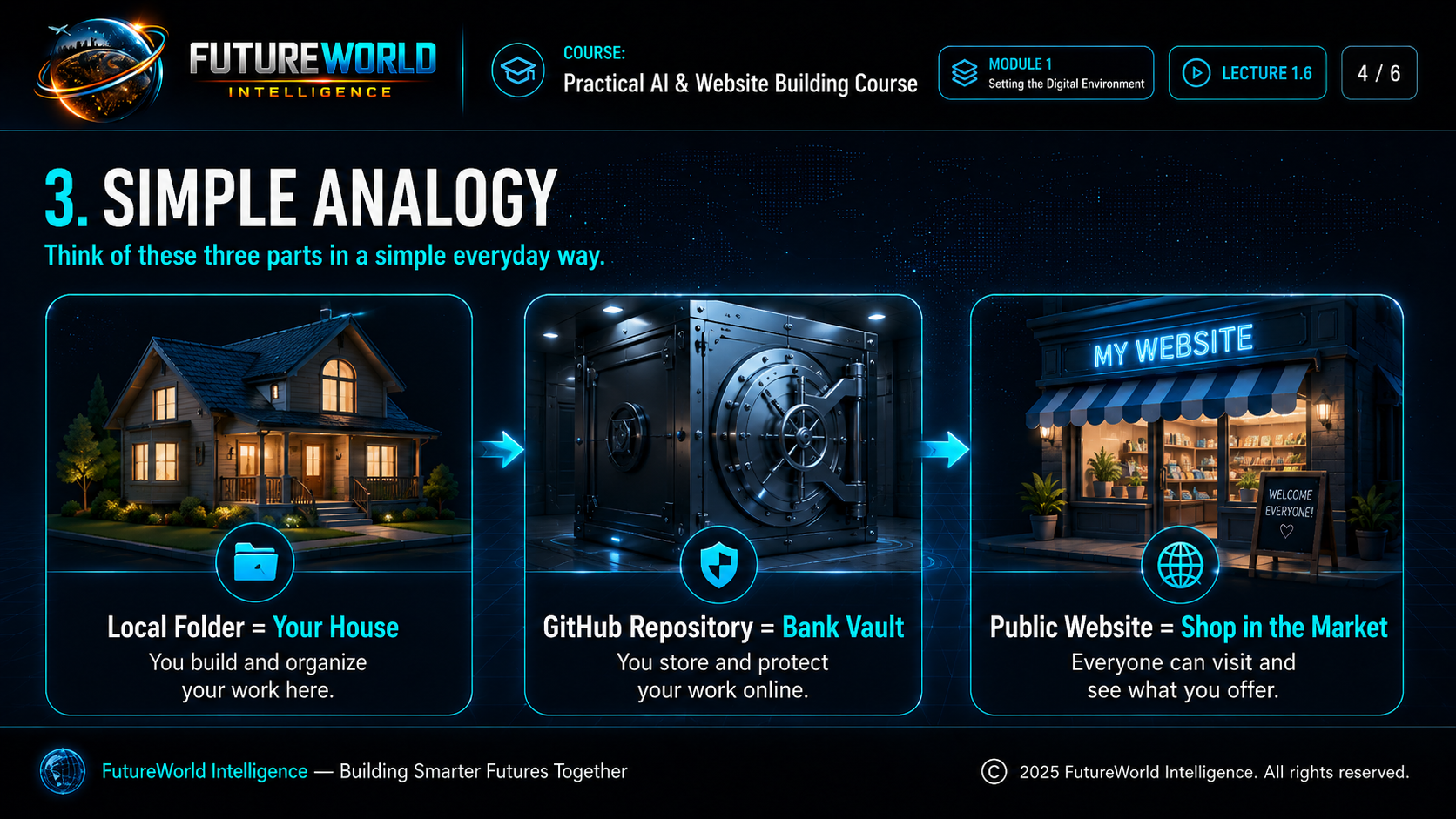
Simple Analogy
Think of it in an everyday way
Your House
Local Folder
You build and organize your work here, privately, on your own device.
Your Vault
GitHub Repository
You store, protect and version your project online.
Your Shop
Public Website
This is what the world can visit, view and interact with.
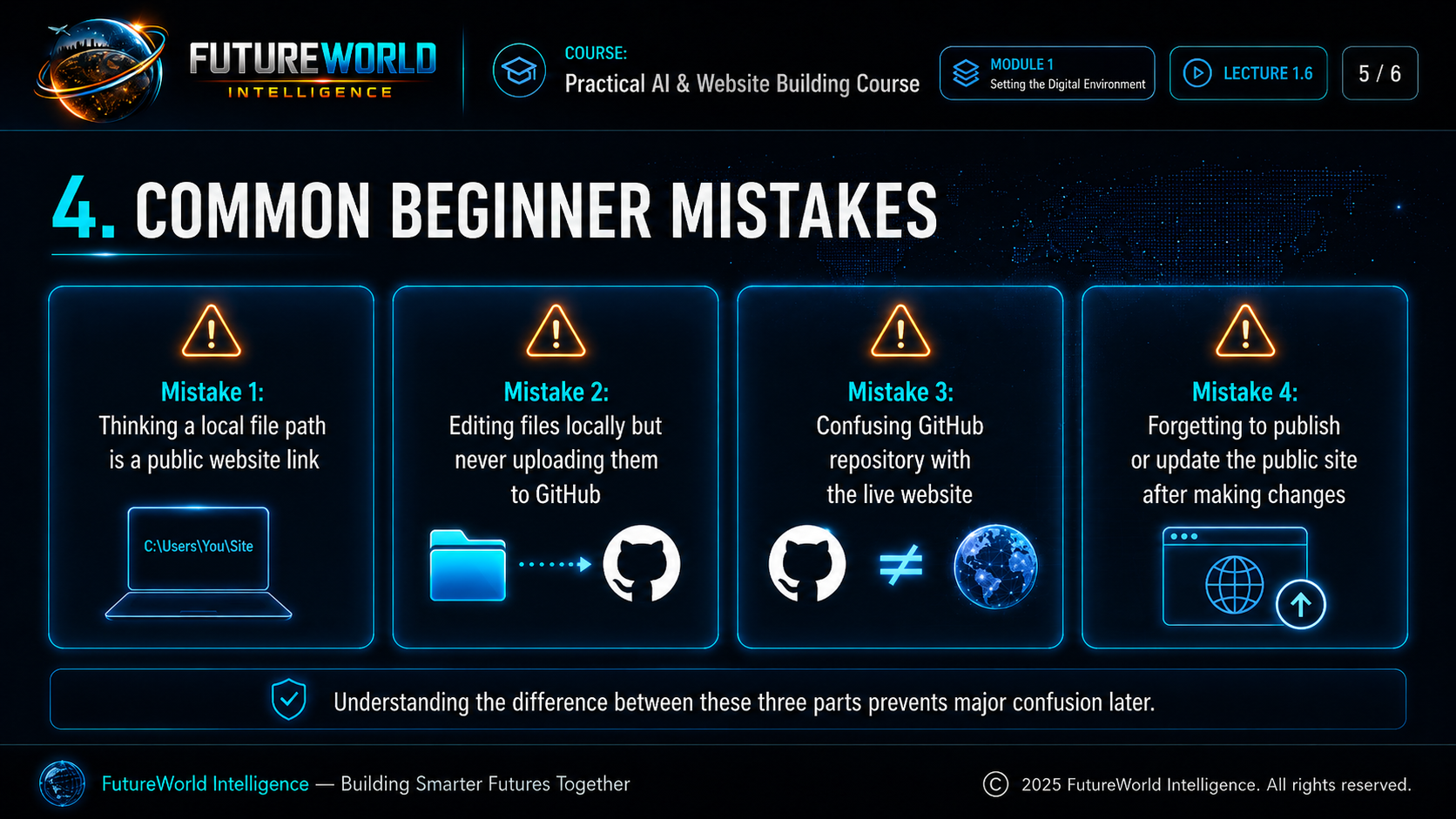
Mistake Prevention
Common beginner mistakes
Mistake 1
Thinking a local file path like C:\Users\Name\Desktop\site\index.html is a public website link.
Mistake 2
Editing files locally but never uploading them to GitHub or the web host.
Mistake 3
Confusing the GitHub repository page with the actual live website visitors should open.
Mistake 4
Forgetting to publish or update the live website after making changes.
| If you see this… | It usually means… |
|---|---|
C:\ or D:\ file path | It is a local folder path on your own computer. |
github.com/username/repo-name | It is the GitHub repository location. |
https://yourdomain.com or https://username.github.io/project/ | It is the live public website URL. |
Student Prompt
Use AI to clarify your own project
Explain the difference between a local folder, a GitHub repository, and a public website URL as if I am a complete beginner. Use simple examples and also show how these three parts work together when building and publishing a website.
Practice Task
Write three examples for your own project:
1. My local folder path
2. My GitHub repository link
3. My public website link
If you do not have one yet, write “not created yet.”
Important Reminder
A local path works only on your computer. A GitHub repository stores your files online. A public website is the live address that other people can open in their browser.

Final Checklist
Key takeaways
- I understand what a local folder is.
- I understand what a GitHub repository is.
- I understand what a public website URL is.
- I know that local paths are private and not public links.
- I know the workflow: build locally → push to GitHub → publish online.
- I can now explain these three layers to another beginner.
Evidence and maintenance record
Source basis and lineage
The local-folder, repository and public-site distinction is supported by current GitHub documentation.
Scope note: Repository visibility and Pages availability depend on the account and plan. Never commit credentials or secret keys.
Sources and lineage reviewed 16 July 2026.