Mission Brief
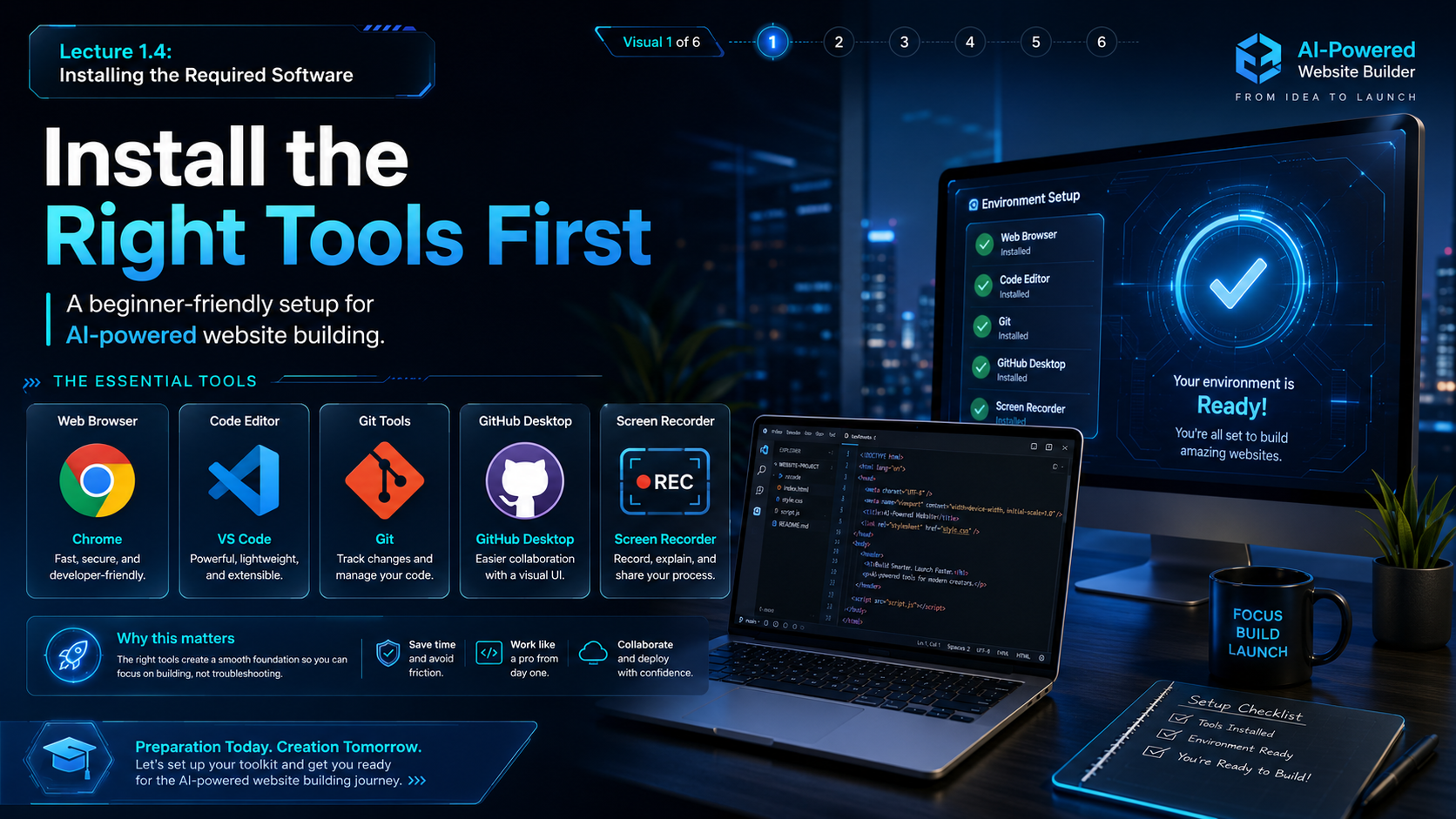
What this lecture will achieve
Install only essentials
Students avoid unnecessary tools and start with a clean setup.
Use official links
Students learn to download software only from trusted official websites.
Prepare workflow
Students understand how browser, VS Code, GitHub Desktop and Git work together.
Core Message
Do not install everything
Official Download Links
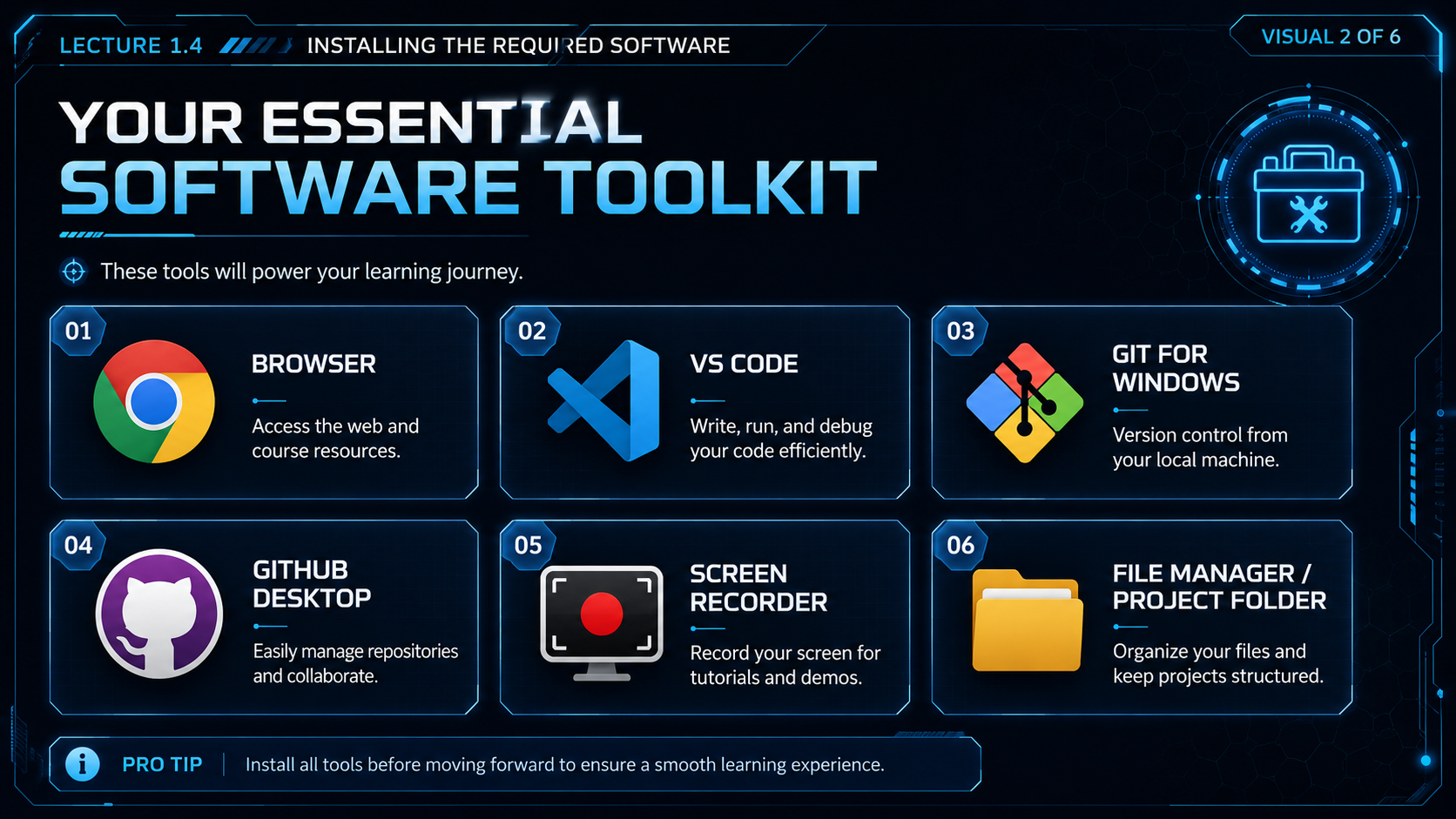
Download from official sources only
Use these official links. Do not search random download websites, and do not click advertisement-style download buttons.
Google Chrome
Modern browser for testing pages, opening tools and checking website display.
Microsoft Edge
Alternative modern browser, already available on many Windows computers.
Visual Studio Code
Code editor for HTML, CSS, JavaScript, Markdown and website files.
GitHub Desktop
Beginner-friendly app for cloning repositories, committing changes and syncing files.
Git for Windows
Installs Git Bash and Git command-line tools for version control.
OBS Studio
Optional screen recorder for creating tutorials and documenting work.
Installation Order
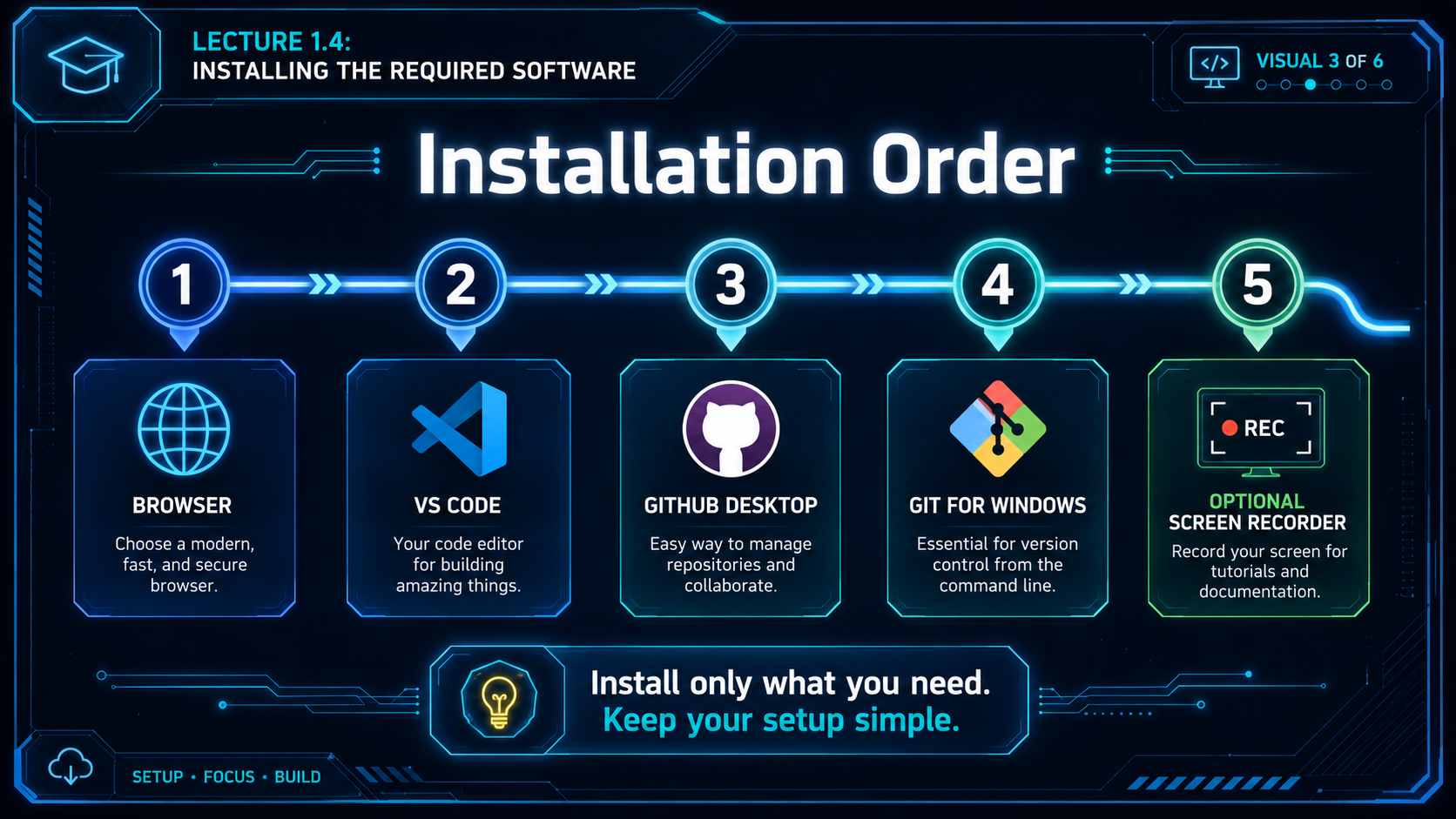
Install step by step
| Order | Tool | Purpose | Beginner note |
|---|---|---|---|
| 1 | Chrome or Edge | Open websites and test your pages. | Use at least one modern browser. |
| 2 | VS Code | Edit website files. | Do not install too many extensions at the start. |
| 3 | GitHub Desktop | Manage repository syncing visually. | Useful before learning commands deeply. |
| 4 | Git for Windows | Use Git Bash and Git commands. | Important for practical website publishing. |
| 5 | OBS Studio or Windows recorder | Record your screen if needed. | Optional at this stage. |
Download Safety
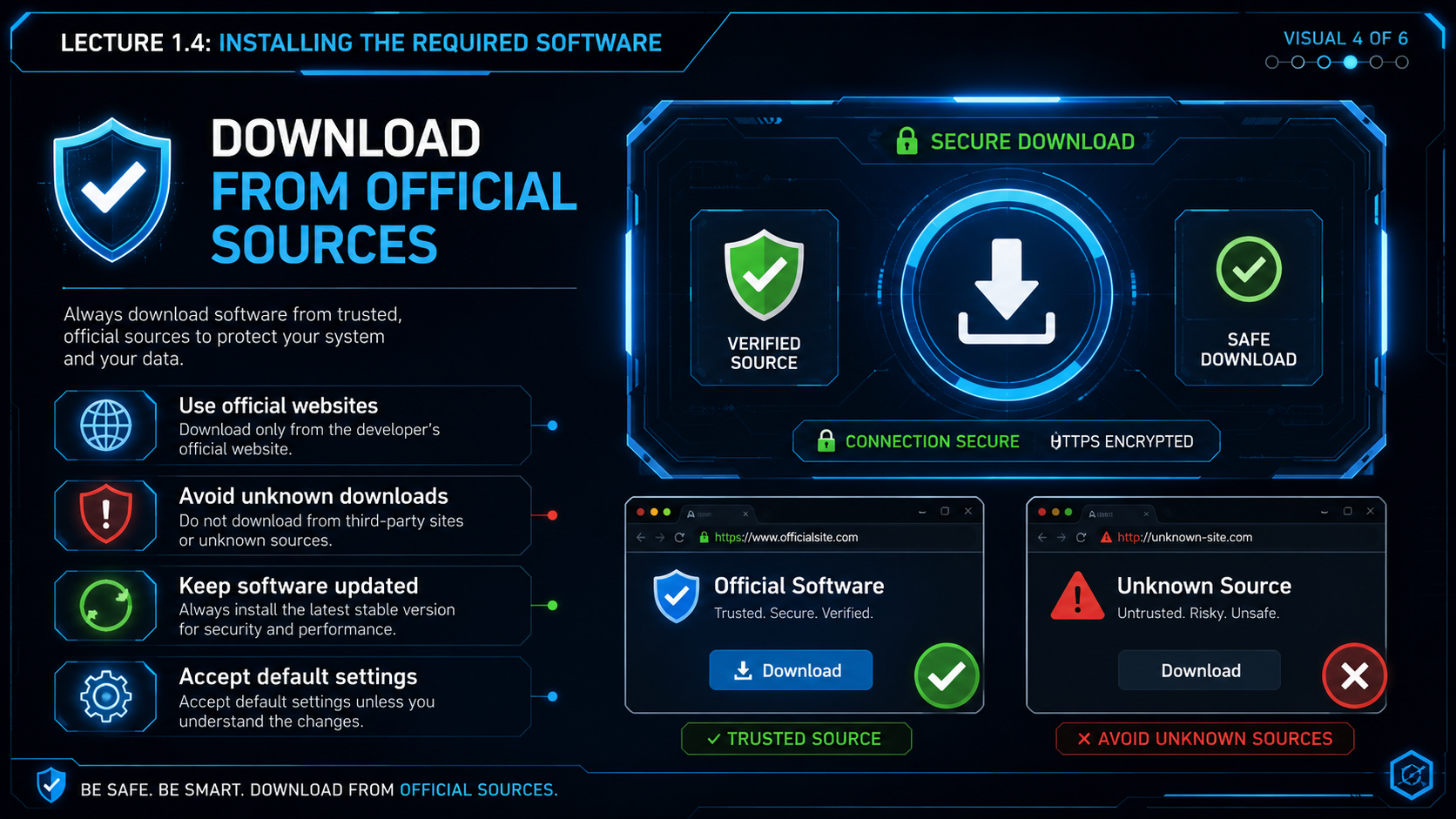
How to download software safely
Use official websites
Download from the product owner’s website, not random file-sharing websites.
Check the domain
Look carefully at the website address before downloading.
Avoid fake buttons
Many unsafe pages use large fake “Download Now” buttons.
Keep installers organized
Save downloads in a known folder so you can find them easily.
Do not install extras
Decline unnecessary toolbars, add-ons or unrelated programs.
Restart if needed
Some tools may require restarting the computer after installation.
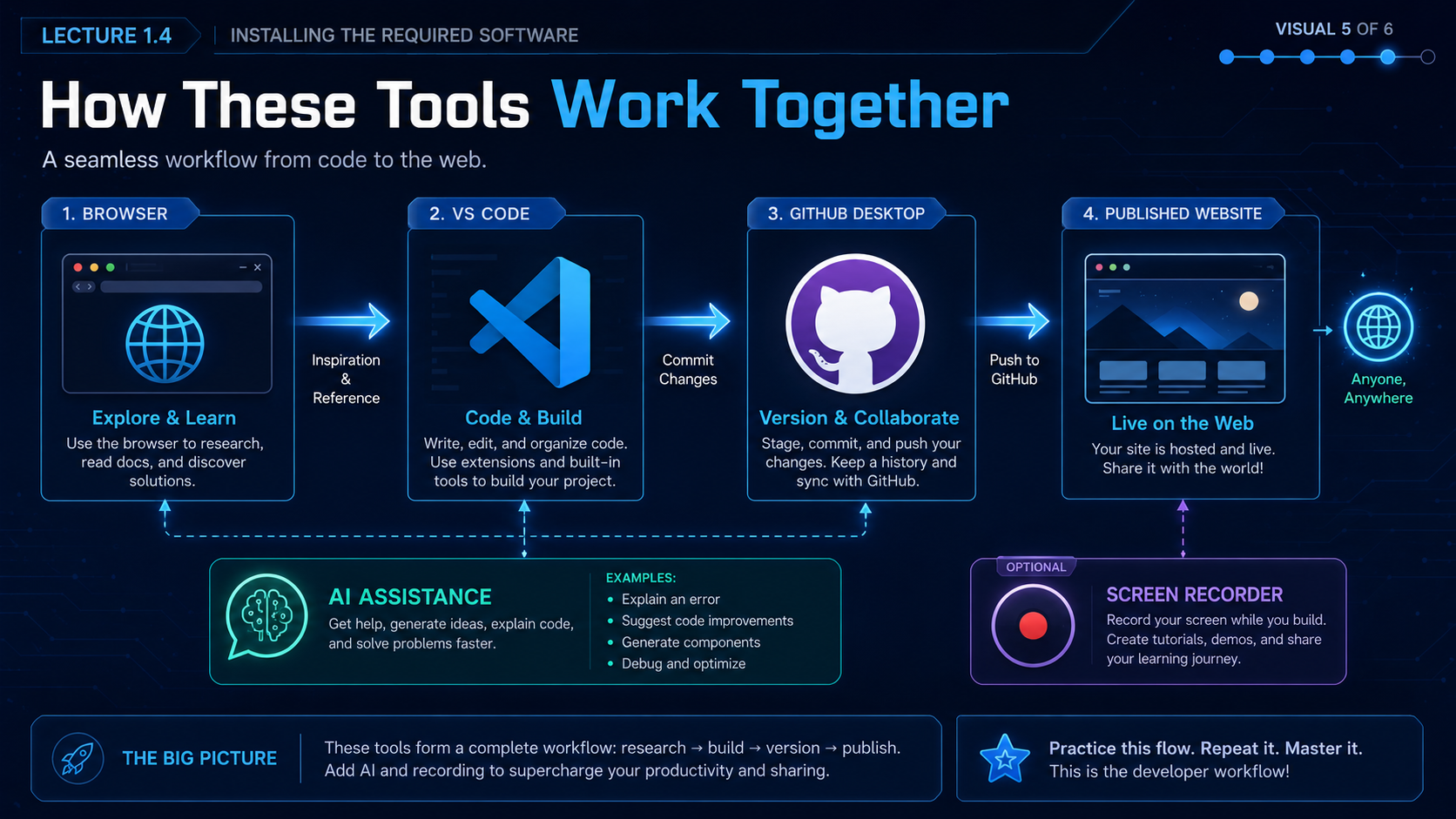
Working Together
How these tools connect
Browser
View your website and test how pages look.
VS Code
Edit your HTML, CSS and project files.
GitHub Desktop
Commit and sync your changes with GitHub.
Git Bash
Run commands such as git status, git pull and git push.
ChatGPT
Explain errors, improve code and guide troubleshooting.
Screen recorder
Optional tool for tutorials, proof of work and teaching.
Lecture 1.4 Prompt Lab
Software Installation Prompt Library
Students should use these prompts to install tools safely and solve beginner problems step by step.
Act as my beginner computer setup assistant. I am preparing my laptop for website building. Give me a simple installation checklist for Chrome or Edge, VS Code, GitHub Desktop, Git for Windows, and a screen recorder. Explain what each tool is used for.
Act as a digital safety teacher. Teach me how to download software safely. Explain how to identify official websites, avoid fake download buttons, and prevent unnecessary software installation.
Act as a beginner-friendly VS Code teacher. Guide me step by step to install VS Code on Windows, open a project folder, create an HTML file, and preview my website in a browser.
Act as a beginner-friendly GitHub Desktop teacher. Explain how to install GitHub Desktop, sign in, clone a repository, commit changes, and push changes to GitHub in simple language.
Act as a beginner Git teacher. Explain how to install Git for Windows and what Git Bash is. Then teach me the first five commands: git status, git add, git commit, git pull --rebase, and git push.
I am a beginner and I am having this installation problem: [describe problem]. Ask me for non-sensitive details, then guide me step by step to fix it safely.
Practice Task
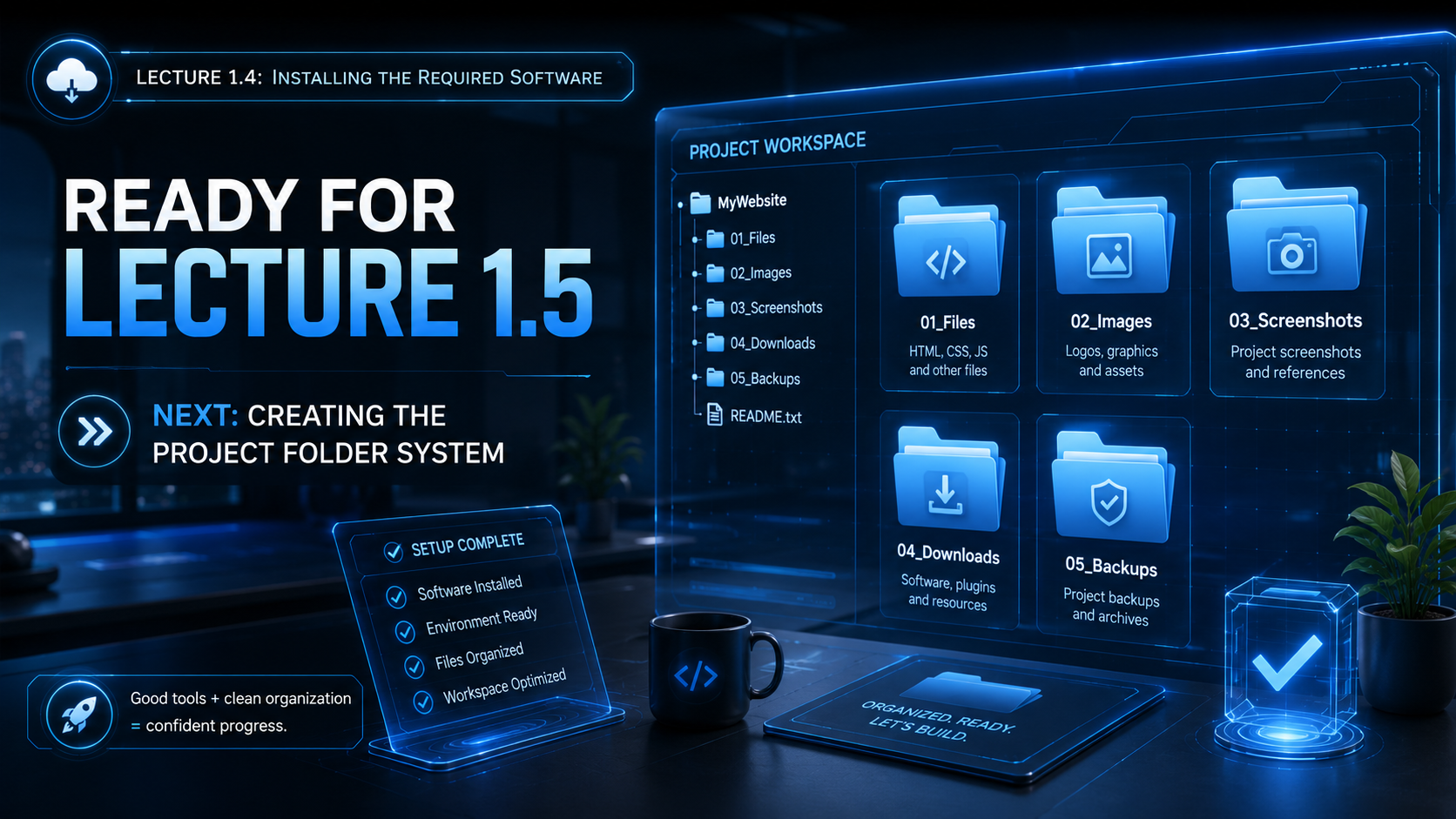
Before Lecture 1.5
Task 1
Install or confirm one modern browser, VS Code, GitHub Desktop and Git for Windows.
Task 2
Open VS Code and create a test file named test.html.
Task 3
Open Git Bash and run git --version to confirm Git is installed.
Final Checklist
Lecture 1.4 complete
- I have installed or confirmed a modern browser.
- I have installed or confirmed VS Code.
- I have installed or confirmed GitHub Desktop.
- I have installed or confirmed Git for Windows / Git Bash.
- I understand that screen recording is optional at this stage.
- I know to download only from official websites.
- I have used at least two prompts from the Prompt Lab.
Copyright Notice
FutureWorld Intelligence materials
© 2026 FutureWorld Intelligence. All modules, lectures, prompts, visuals, graphics, downloadable files and instructional designs are protected intellectual property. Students may use this material for personal learning and may share official links. Copying, re-uploading, selling, modifying, packaging, distributing or presenting this material as someone else’s work is not allowed without written permission.
Read Full Copyright NoticeEvidence and maintenance record
Source basis and lineage
Installation guidance is checked against the official VS Code and GitHub Desktop setup documentation; the page also links to official vendor downloads.
Scope note: Download software only from official sources and confirm operating-system compatibility before installation.
Sources and lineage reviewed 16 July 2026.