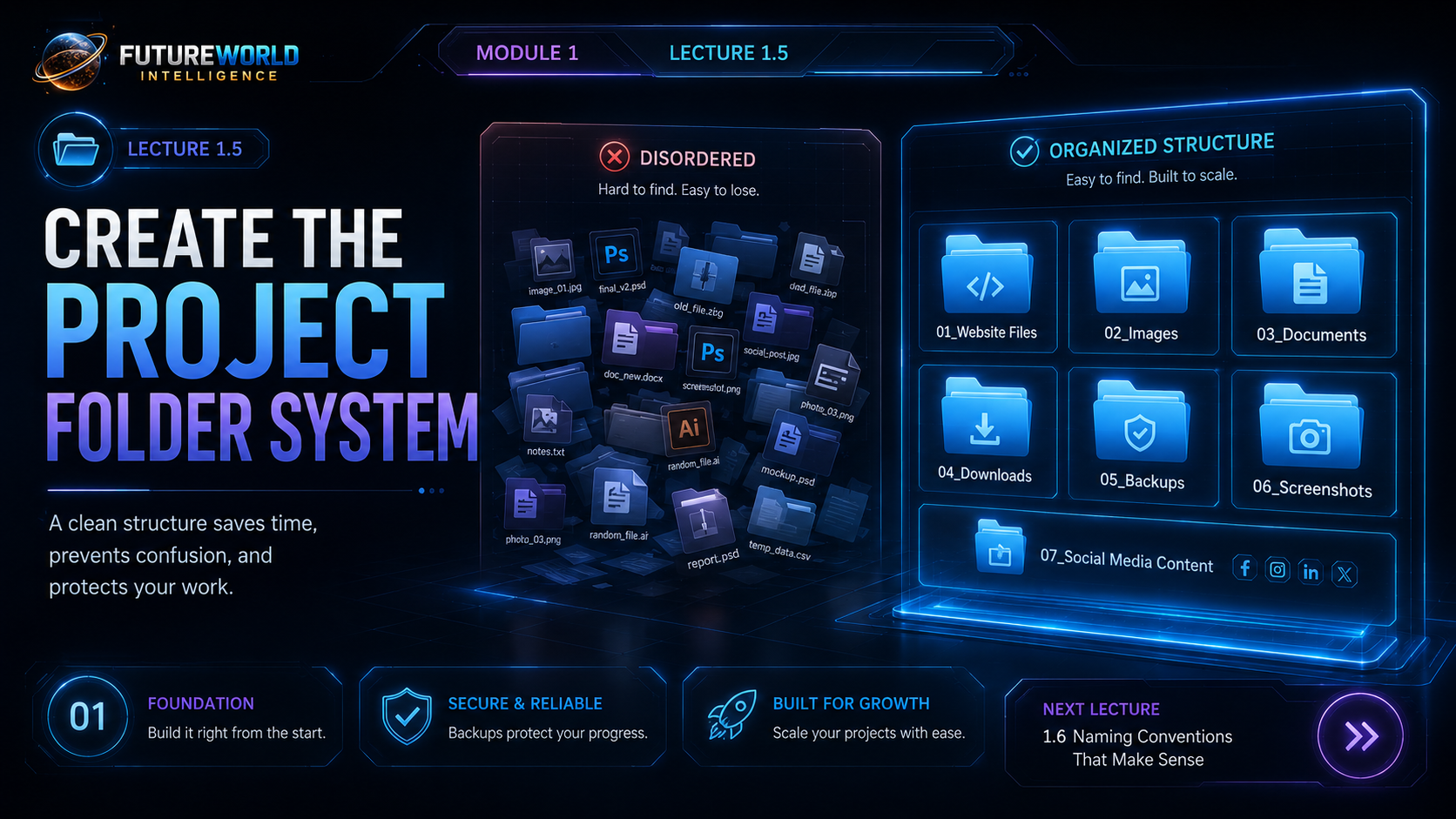
Mission Brief
What this lecture will achieve
Create one project home
Students create one main folder where all course and website work will live.
Separate file types
Students understand where website files, images, documents, screenshots and backups belong.
Name files clearly
Students learn simple naming rules that reduce mistakes and broken links.
Core Message
Organization is part of digital skill
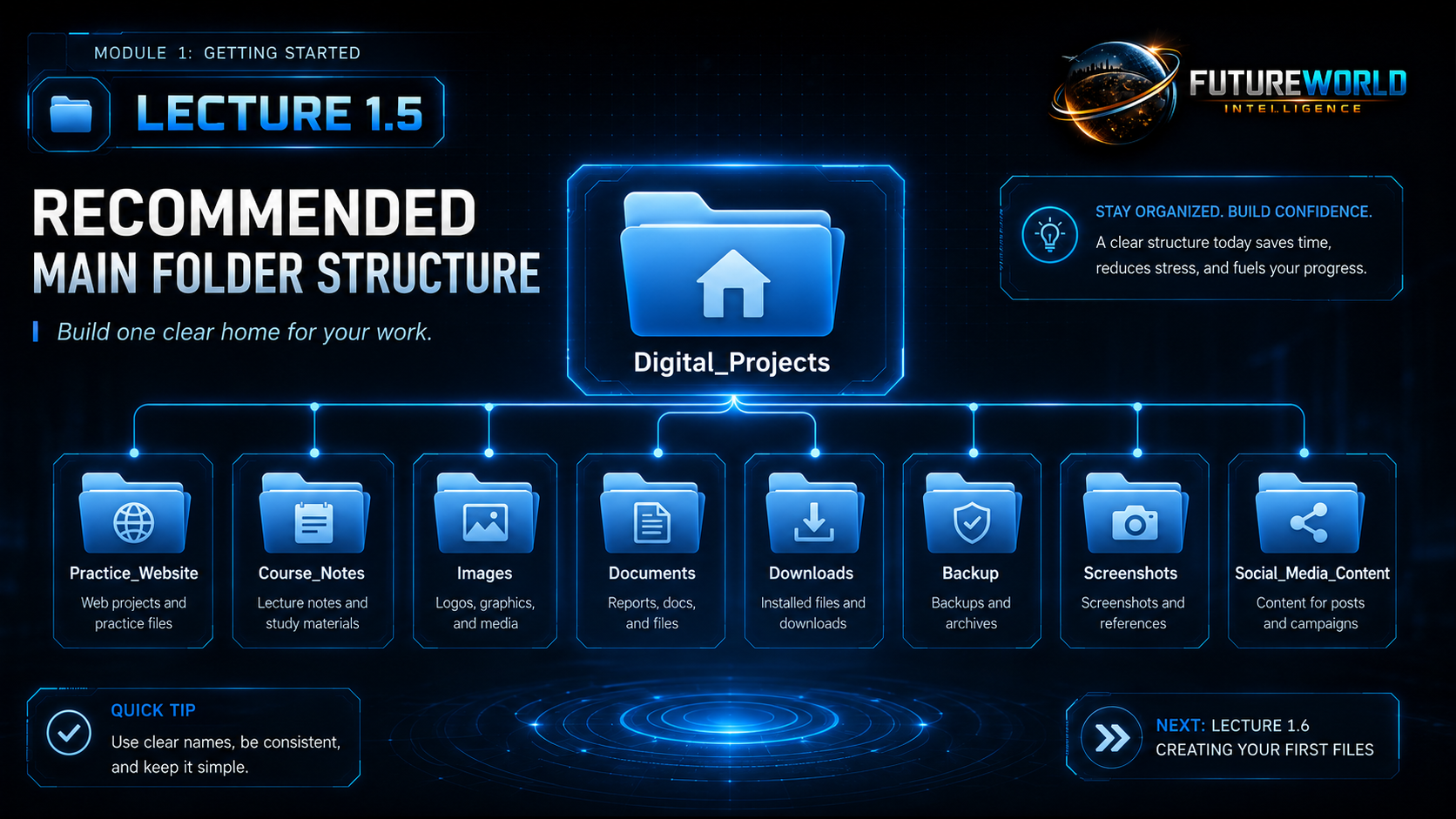
Recommended Structure
Build one clear home for your work
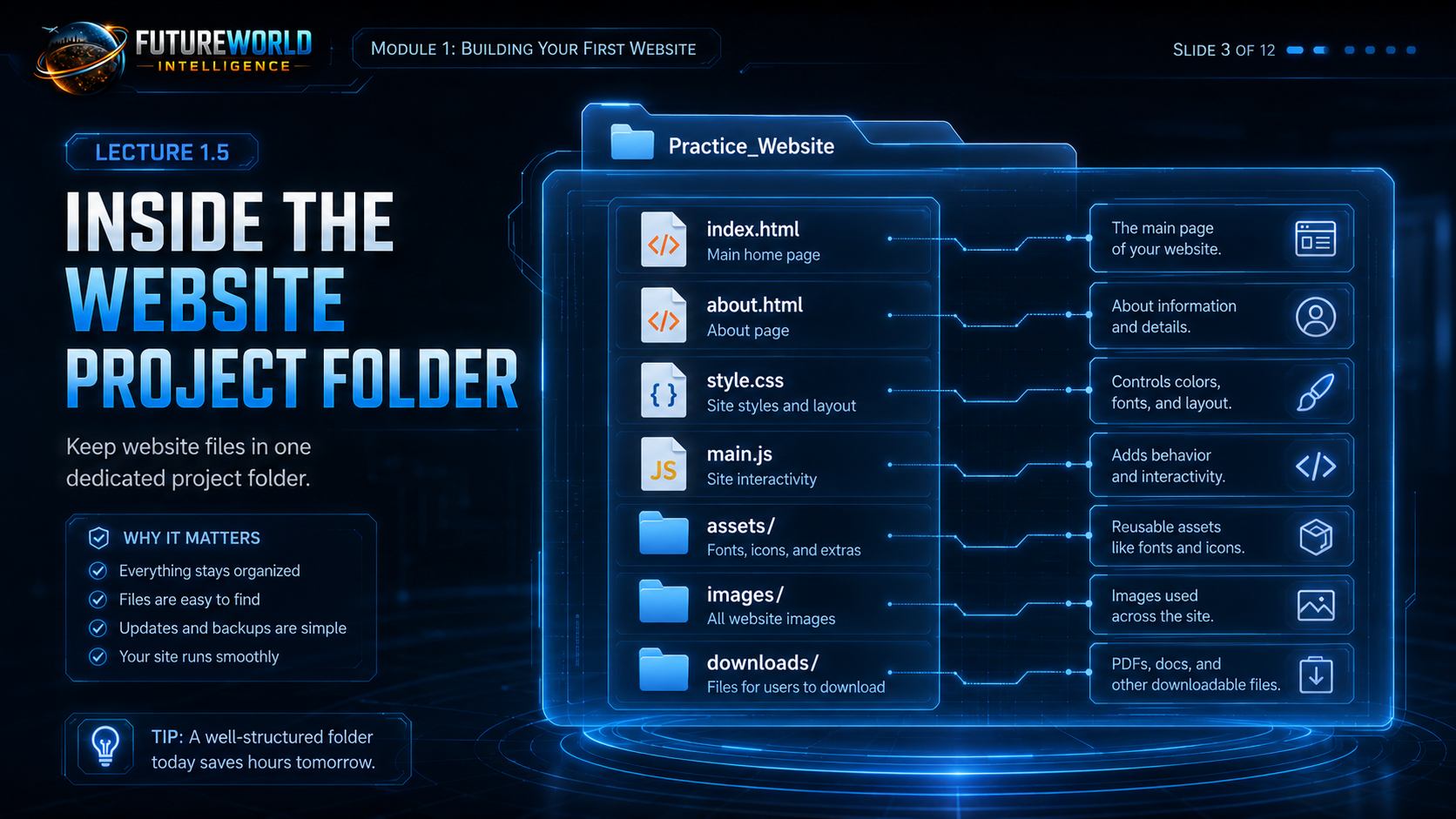
Website Folder
Inside the website project folder
| File or folder | Purpose | Beginner note |
|---|---|---|
| index.html | Main homepage file. | Most websites start with this file. |
| about.html | About page content. | Use clear page names. |
| style.css | Controls colors, fonts and layout. | Keep style in one main CSS file at first. |
| main.js | Adds interactivity. | Optional for beginners at the start. |
| assets/ | Reusable assets such as icons and fonts. | Use later when projects grow. |
| images/ | Images used across the website. | Keep logos and graphics here. |
| downloads/ | PDFs and documents users can download. | Only add files you want visitors to access. |
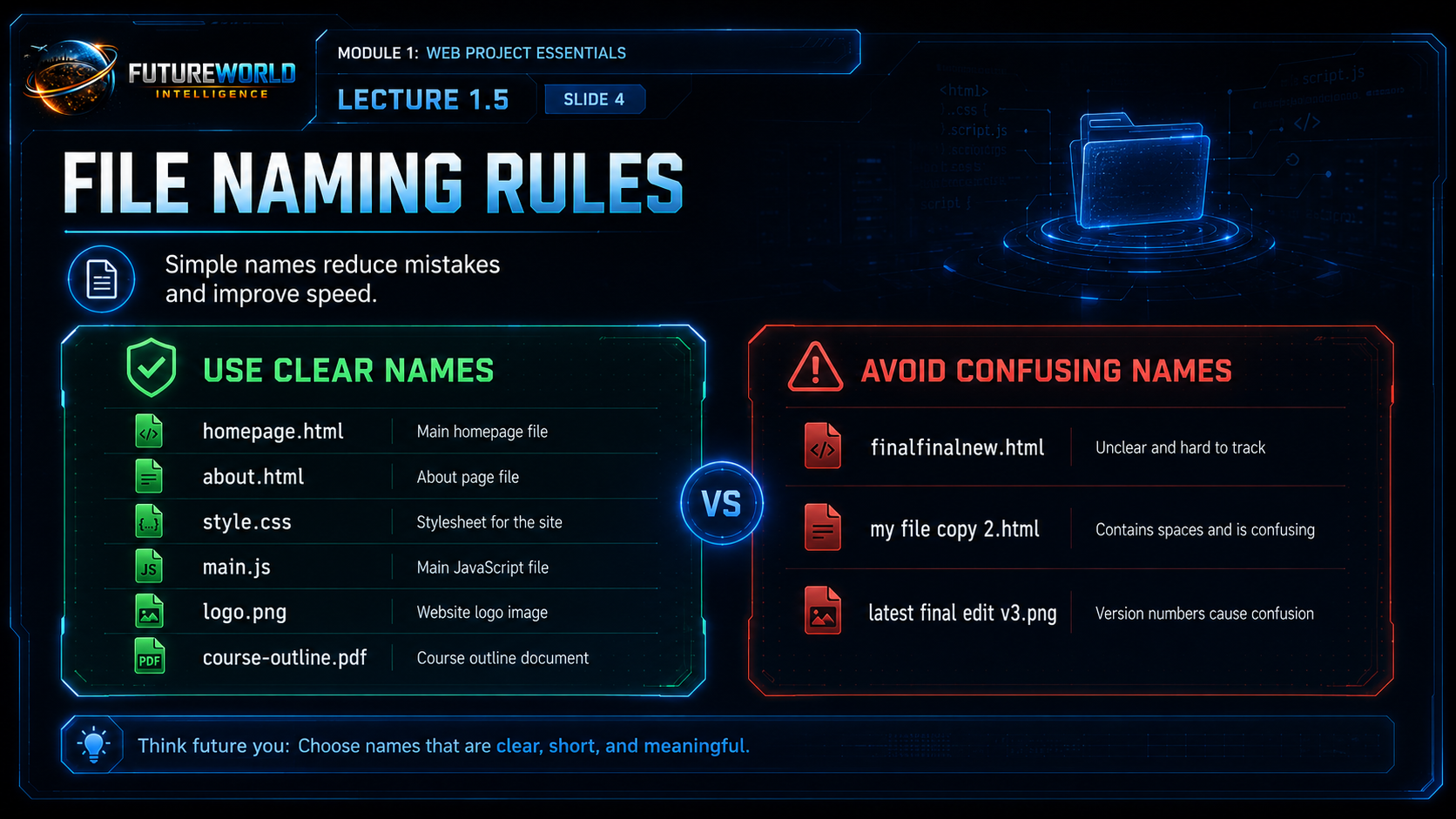
File Naming Rules
Use clear names and avoid confusion
Use clear names
- homepage.html
- about.html
- style.css
- main.js
- logo.png
- course-outline.pdf
Avoid confusing names
- finalfinalnew.html
- my file copy 2.html
- latest final edit v3.png
- WhatsApp Image latest edited.png
- random_file.ai
File Placement
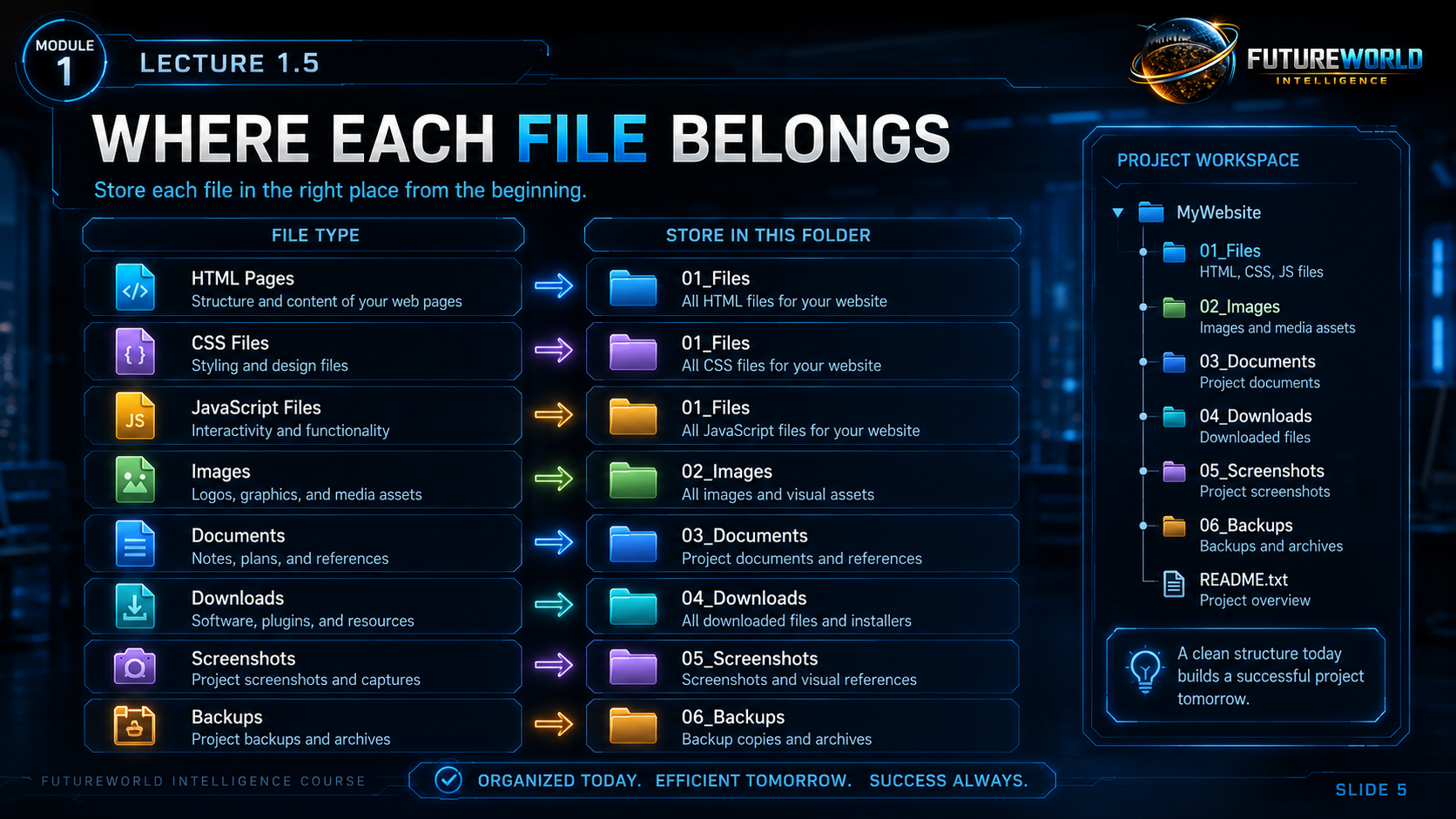
Where each file belongs
HTML / CSS / JS
Keep core website files in the website project folder.
Images
Store logos, graphics and media assets in the Images folder or website images folder.
Documents
Store notes, plans and references in Documents or Course_Notes.
Downloads
Keep installers, plugins and downloaded resources in Downloads.
Screenshots
Save proof, errors and references in Screenshots with dates if useful.
Backups
Keep backup copies in Backup and external storage when possible.
Backup Routine
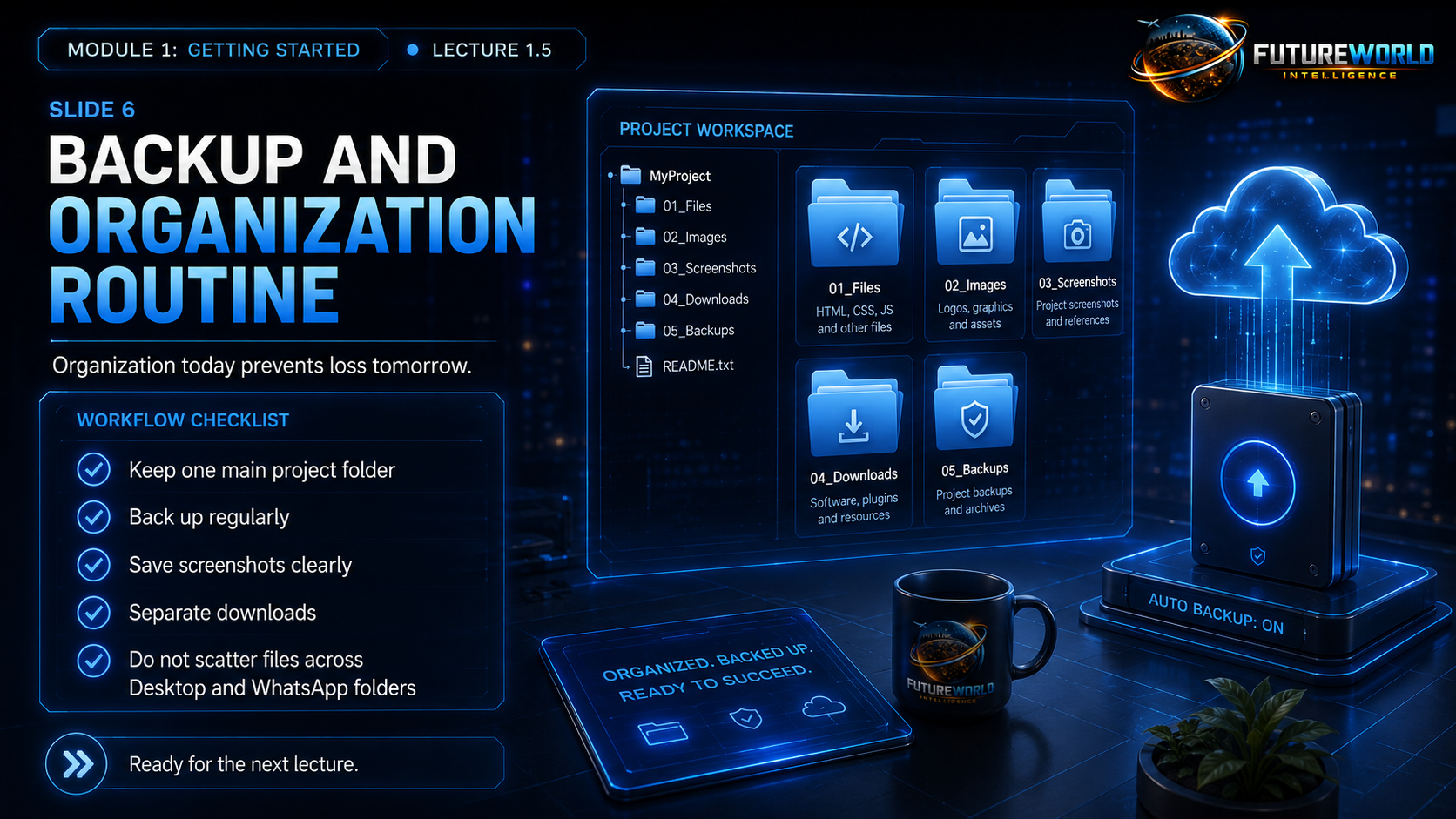
Protect your work
Keep one main folder
Do not scatter files across Desktop, Downloads and WhatsApp.
Backup regularly
Use an external drive, cloud storage or a separate backup folder.
Save screenshots clearly
Use screenshots for errors, settings and proof of completed work.
Separate downloads
Move important downloaded files into project folders if needed.
Delete clutter carefully
Do not delete files until you are sure they are no longer needed.
Use GitHub later
Website files will also be saved online through GitHub repositories.
Lecture 1.5 Prompt Lab
Project Folder Prompt Library
Students should use these prompts to create clean project folders and avoid file confusion.
Help me create a clean folder structure for a beginner website project about [write your topic]. Include folders for website files, images, documents, downloads, backups, screenshots, and social media content. Also suggest simple file naming rules.
Act as a beginner website project organizer. Create a simple folder and file structure for my first website. Include index.html, about.html, style.css, main.js, images, assets, downloads, and README.txt.
Create simple file naming rules for a beginner website project. Explain why I should avoid spaces, confusing names, random downloads, and repeated final versions.
I have a messy folder with website files, images, screenshots, downloads, documents, and backups. Act as my file organization assistant. Ask me what types of files I have, then suggest where each file should go.
Act as a beginner backup coach. Create a simple backup routine for my website project. Include local backup, external drive backup, cloud backup, screenshots, and GitHub repository backup.
Create a simple README.txt template for my beginner website project. Include project name, purpose, folder explanation, important files, update notes, and backup instructions.
Practice Task
Before Lecture 1.6
Task 1
Create a main folder named Digital_Projects.
Task 2
Create the recommended subfolders for website files, notes, images, documents, downloads, backups, screenshots and social media content.
Task 3
Create a small README.txt file explaining what the project is and where files should go.
Final Checklist
Lecture 1.5 complete
- I have created one main project folder.
- I have created subfolders for website files, notes, images, documents, downloads, backups, screenshots and social media content.
- I understand where each file type belongs.
- I know simple file naming rules.
- I understand why backups are important.
- I have used at least two prompts from the Prompt Lab.
Copyright Notice
FutureWorld Intelligence materials
© 2026 FutureWorld Intelligence. All modules, lectures, prompts, visuals, graphics, downloadable files and instructional designs are protected intellectual property. Students may use this material for personal learning and may share official links. Copying, re-uploading, selling, modifying, packaging, distributing or presenting this material as someone else’s work is not allowed without written permission.
Read Full Copyright NoticeEvidence and maintenance record
Source basis and lineage
This lecture is an original FWI project-organization method that prepares learners for later repository work.
Scope note: Folder names are recommendations, not platform requirements. Learners should adapt them to their operating system and project.
Sources and lineage reviewed 16 July 2026.